Large Language Models
Warning
Starting in ChatterBot 1.2.7 experimental support for large language models is being added. This support is not yet complete and is not yet ready for general use beyond experimental purposes. The API will likely change in the future and the functionality may not be fully implemented.
Warning
Do not deploy LLM-enabled ChatterBot applications in production without:
Comprehensive security review and hardening
Enabling security scanning (see Security)
Additional rate limiting and abuse prevention
Monitoring and alerting for security violations
Understanding of OWASP Top 10 for LLM Applications
Regular security audits and penetration testing
The API may change in future releases as LLM support matures.
Security Considerations:
LLM applications are vulnerable to prompt injection, jailbreaking, and other attacks. ChatterBot provides optional security scanning via llm-guard (see Security), but this is a baseline defense and not sufficient for production deployment without additional hardening.
Review the OWASP Top 10 for LLM Applications before deploying any LLM-enabled application.
LLM Roadmap
The following phases of development are the general roadmap for LLM support in ChatterBot. The goal is to provide a simple and consistent interface for LLM integration, and to make it easy to add support for new LLMs as they become available.
Note
Added April 1st, 2025
Last updated: February 2nd, 2026
Phase 1:
Support for local and remote LLMs.
☑ Support for Ollama LLMs, which at the current time appear to be the easiest to set up and run on local hardware.
☑ Support for accessing LLMs that use the OpenAI API.
Phase 2:
☐ Streaming response support across features in ChatterBot.
Note
This functionality is being skipped for now, but may be reprioritized in the future. This would be more important to implement if streaming inputs, eg. text from streaming audio or video sources were being supported (which is not currently something this project aims to address, nor do most LLMs support).
Phase 3:
LLM integration with specific logic adapter features via MCP tool calling.
☑ Mathematical operations
MathematicalEvaluationviamathparse☑ Date and time
TimeLogicAdapter☑ Unit conversion
UnitConversion
One of the concepts / theories here that we want to evaluate is, for example, that it may be easier (and more efficient) to teach AI to use a calculator than it is to teach it the rules of mathematics. Whether this is because it lets us use smaller LLMs that don’t have a strong understanding of math, or because in general it allows us to offload processing of other complex tasks, there is likely a strong use case here.
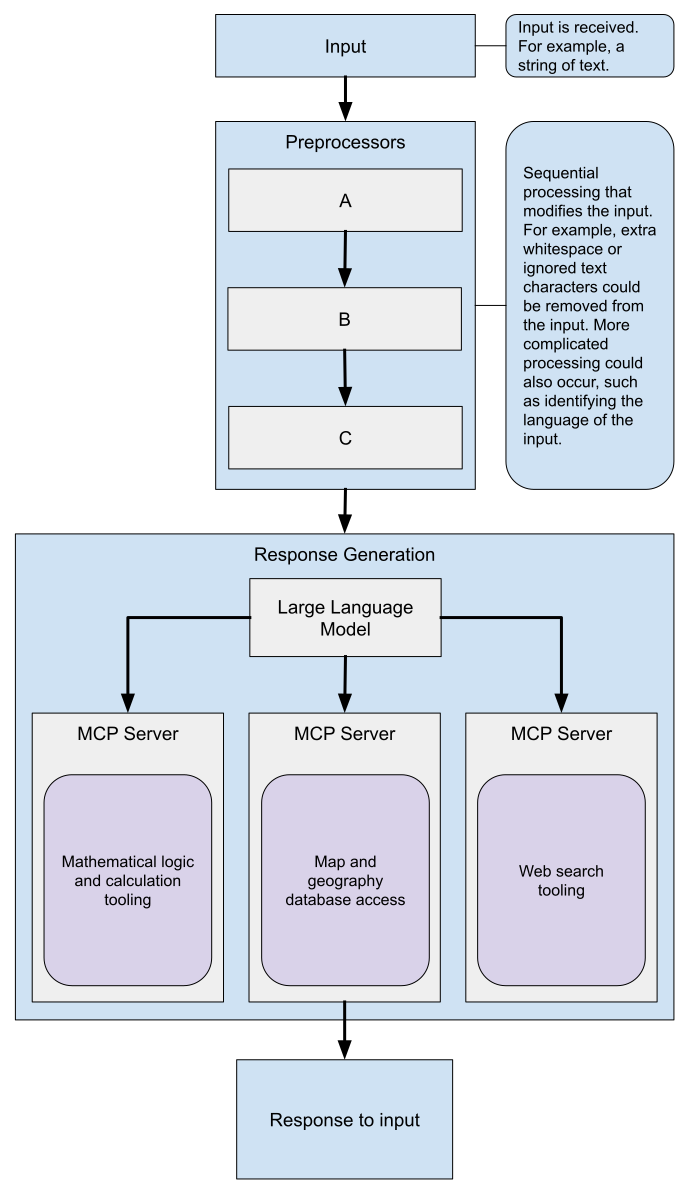
Both interestingly and conveniently, ChatterBot’s existing architecture used for its logic adapters is already very similar to approaches used to provide additional tools to LLMs. The Model Context Protocol (MCP) supported by a range of MCP server implementations currently seems like a strong candidate for this.
Phase 3 has been implemented using the MCP tool format to allow LLMs to invoke logic adapters as tools.
The implementation supports:
Native tool calling for models that support it (Ollama llama3.1+, mistral, qwen2.5; all OpenAI models)
Prompt-based fallback for models without native tool support using structured JSON
Hybrid configurations where LLM adapters work alongside traditional logic adapters in consensus voting
Classic ChatterBot (Logic Adapters) |
LLM with MCP |
|---|---|

|
|
LLM adapters now participate in ChatterBot’s consensus voting mechanism alongside traditional logic adapters. This allows multiple adapters (LLM and non-LLM) to “vote” on the best response, with the highest confidence response winning.
Basic LLM Configuration
from chatterbot import ChatBot

bot = ChatBot(
    'My Bot',
    logic_adapters=[
        {
            'import_path': 'chatterbot.logic.OllamaLogicAdapter',
            'model': 'llama3.1',
            'host': 'http://localhost:11434'
        }
    ]
)
LLM with Tool Support
Enable specialized tools by passing logic adapters in the logic_adapters_as_tools parameter:
bot = ChatBot(
    'My Bot',
    logic_adapters=[
        {
            'import_path': 'chatterbot.logic.OllamaLogicAdapter',
            'model': 'llama3.1',
            'logic_adapters_as_tools': [
                'chatterbot.logic.MathematicalEvaluation',
                'chatterbot.logic.TimeLogicAdapter',
                'chatterbot.logic.UnitConversion'
            ]
        }
    ]
)
When a tool-capable model is used (e.g., llama3.1, mistral, qwen2.5, or any OpenAI model), the LLM will be able to invoke these tools using native function calling. For models without native support, the adapter automatically falls back to prompt-based tool calling.
Hybrid Configuration
Combine LLM adapters with traditional logic adapters for consensus voting:
bot = ChatBot(
    'My Bot',
    logic_adapters=[
        {
            'import_path': 'chatterbot.logic.OllamaLogicAdapter',
            'model': 'llama3.1',
            'logic_adapters_as_tools': [
                'chatterbot.logic.MathematicalEvaluation',
                'chatterbot.logic.TimeLogicAdapter'
            ],
            'min_confidence': 0.6,
            'max_confidence': 0.9
        },
        'chatterbot.logic.BestMatch',
        'chatterbot.logic.SpecificResponseAdapter'
    ]
)
In this configuration, the LLM adapter votes alongside BestMatch and SpecificResponseAdapter,
with the highest confidence response being selected. The min_confidence and max_confidence
parameters control the LLM’s confidence range for voting purposes.
Phase 4:
☐ LLM integration with the ChatterBot training process
The ideal outcome for this phase would be the ability to use the existing training pipelines to fine-tune LLMs. It isn’t clear yet if this will be possible to do with common hardware, but right now this is the goal. An alternative may be to use a RAG approach to allow the LLM to access the chat bot’s database when generating responses.
Ollama Support
ChatterBot’s experimental support for using Ollama LLMs can be tested using the following setup:
Have Docker installed and running
Install ChatterBot and the Ollama client library
Use the following
docker-composefile to run the Ollama server:
services:

 # NOTE: This setup is for AMD GPUs
 ollama:
     image: ollama/ollama:rocm
     ports:
     - "11434:11434"
     volumes:
     - ./.database/ollama:/root/.ollama
     devices:
     - /dev/kfd
     - /dev/dri
The following commands can be used to download various Ollama models:
docker compose up -d
# Create a shell in the docker container
docker compose exec ollama bash

# Download and run the Gemma 3 model
ollama run gemma3:1b
More notes on the
ollamacontainer: https://hub.docker.com/r/ollama/ollamaOllama model library: https://ollama.com/library
The following is an example of how to use the Ollama LLM in ChatterBot. Before running
them you will need to install the ollama client library. This can be done directly
using pip or by using the extra option from the ChatterBot package that includes it:
pip install chatterbot[dev]
"""
EXPERIMENTAL: See https://docs.chatterbot.us/large-language-models/ for more information.

Example of using the Ollama API with the Ollama Python client.

This example shows how to integrate Ollama models into ChatterBot's consensus
voting system and optionally enable tool calling for specialized tasks.
"""
from chatterbot import ChatBot
import uuid

# Uncomment the following lines to enable verbose logging
# import logging
# logging.basicConfig(level=logging.INFO)


# Create a new instance of a ChatBot
bot = ChatBot(
    'Ollama Example Bot',
    logic_adapters=[
        {
            'import_path': 'chatterbot.logic.OllamaLogicAdapter',
            'model': 'llama3.1',
            'host': 'http://localhost:11434',
            # Optionally enable tools:
            'logic_adapters_as_tools': [
                'chatterbot.logic.MathematicalEvaluation',
                'chatterbot.logic.TimeLogicAdapter',
            ]
        }
    ]
)

print('Type something to begin...')

# Generate a conversation ID so the LLM adapter can retrieve
# previous messages and maintain context across turns.
conversation_id = uuid.uuid4().hex

# The following loop will execute each time the user enters input
while True:
    try:
        user_input = input()

        bot_response = bot.get_response(user_input, conversation=conversation_id)
        print(bot_response)

    # Press ctrl-c or ctrl-d on the keyboard to exit
    except (KeyboardInterrupt, EOFError, SystemExit):
        break
Using the OpenAI client
The following is an example of how to use the OpenAI client in ChatterBot. Before running
the example you will need to install the openai client library. This can be done directly
using pip or by using the extra option from the ChatterBot package that includes it:
pip install chatterbot[dev] python-dotenv
Obtain an OpenAI API key: https://platform.openai.com/settings/organization/api-keys
Create a
.envfile to hold your API key in the parent directory from where your code is running.
OPENAI_API_KEY="API Key Here"
"""
EXPERIMENTAL: See https://docs.chatterbot.us/large-language-models/ for more information.

Example of using the OpenAI API with the OpenAI Python client.

Requires OPENAI_API_KEY environment variable to be set.

This example shows how to integrate OpenAI models into ChatterBot's consensus
voting system and enable tool calling for specialized tasks.
"""
from chatterbot import ChatBot
from dotenv import load_dotenv
import uuid

# Load the OPENAI_API_KEY from the .env file
load_dotenv('../.env')

# Create a new instance of a ChatBot
bot = ChatBot(
    'OpenAI Example Bot',
    logic_adapters=[
        {
            'import_path': 'chatterbot.logic.OpenAILogicAdapter',
            'model': 'gpt-4o-mini',
            # Enable tools for math, time, and unit conversion
            'logic_adapters_as_tools': [
                'chatterbot.logic.MathematicalEvaluation',
                'chatterbot.logic.TimeLogicAdapter',
                'chatterbot.logic.UnitConversion'
            ]
        }
    ]
)

print('Type something to begin...')

# Generate a conversation ID so the LLM adapter can retrieve
# previous messages and maintain context across turns.
conversation_id = uuid.uuid4().hex

# The following loop will execute each time the user enters input
while True:
    try:
        user_input = input()

        bot_response = bot.get_response(user_input, conversation=conversation_id)
        print(bot_response)

    # Press ctrl-c or ctrl-d on the keyboard to exit
    except (KeyboardInterrupt, EOFError, SystemExit):
        break